RFQ Compare scenario evidence
Overview / Logistic

Logistic 4 scenarios

Logistic receives incoming orders, marks items collected, updates on-hand inventory, processes returns/damages, and reviews inventory reconciliation reports.

L1

Receive an incoming order and mark items collected

e2e/tests/staging-validation/logistic-l1-receive-orders.spec.js
logistic
  1. Open the /to-collect pending incoming queue.
  2. Confirm access (skip if the user lacks canDoLogistic permission).
  3. Select the first pending item via its checkbox.
  4. Click "Mark collected" and confirm in the LogisticMarkCollectedModal.
  5. Reload /to-collect and check /to-deliver to confirm the item moved to COLLECTED/RECEIVED.
logistic picks an incoming order and marks items collected · L24
L2

Update an inventory item's on-hand quantity

e2e/tests/staging-validation/logistic-l2-update-inventory.spec.js
logistic
  1. Navigate to /inventory and confirm it loads without redirect.
  2. Open the first inventory item's edit pencil (skip if canManageInventory is absent).
  3. In EditInventoryItemModal, read the current Total qty value.
  4. Increase the on-hand quantity by 1 to a deterministic new value.
  5. Save via "Update item".
  6. Reload /inventory and confirm the new quantity persists.
logistic edits an inventory item quantity and sees it persist · L24
L3

Process a return on a delivered order

e2e/tests/staging-validation/logistic-l3-process-return.spec.js
logistic
  1. Open /delivered (completed logistic items).
  2. Open the first delivered item via its order link or row checkbox.
  3. Trigger the return/damage affordance (fixme if none is present yet).
  4. Fill a return reason and set the returned quantity to 1.
  5. Confirm/submit the return.
  6. Reload and look for a returned/damaged indicator.
logistic marks a delivered item as damaged/returned with reason · L24
L4

Review the inventory reconciliation report

e2e/tests/staging-validation/logistic-l4-inventory-report.spec.js
logistic
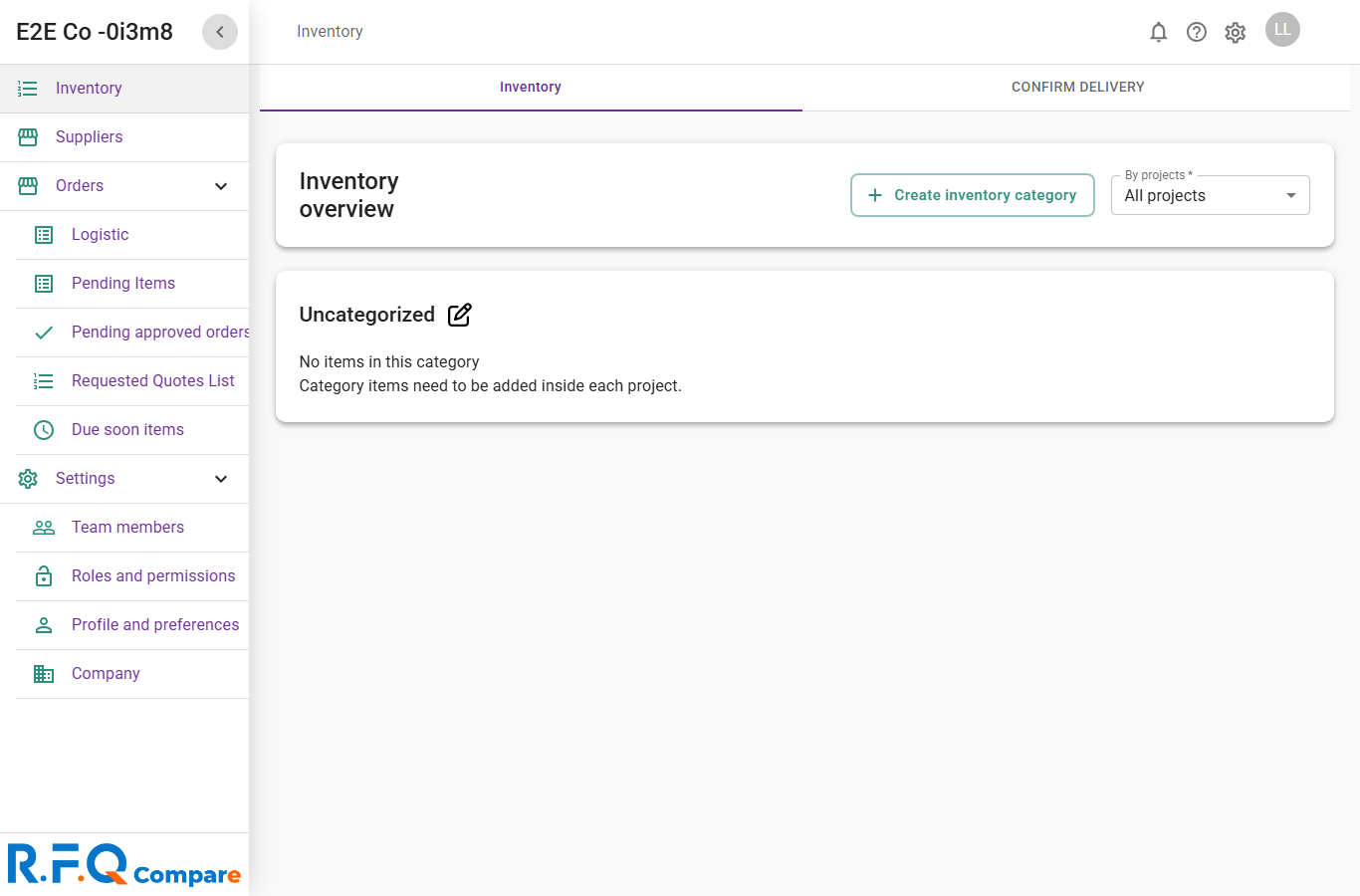
  1. Navigate to /inventory and confirm it loads without redirect.
  2. Verify the "Filter by project" header, a category heading, or an empty-state placeholder renders.
  3. If categories exist, confirm Total/Reserved quantity headers and numeric values are present.
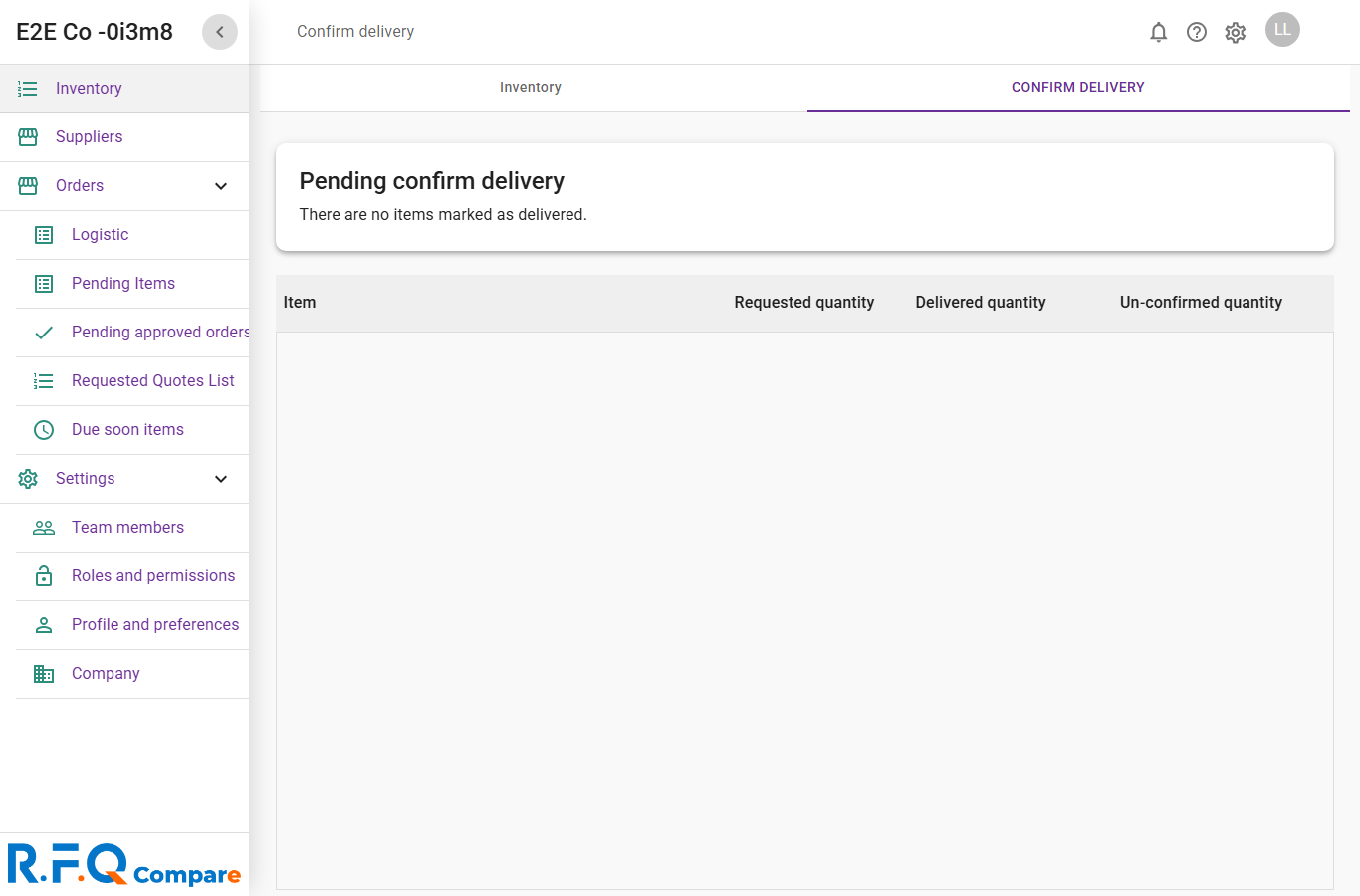
  4. Open /inventory/confirm-delivery and confirm the reconciliation sub-route renders body content.
inventory report renders with categories and quantity totals · L25

Screenshot evidence

Captured against staging 2026-05-26. Click any shot to enlarge. Filenames preserved as captions. rbacv2-* shots are role-access probes — logistic visiting each route (real page if allowed, denied if not).

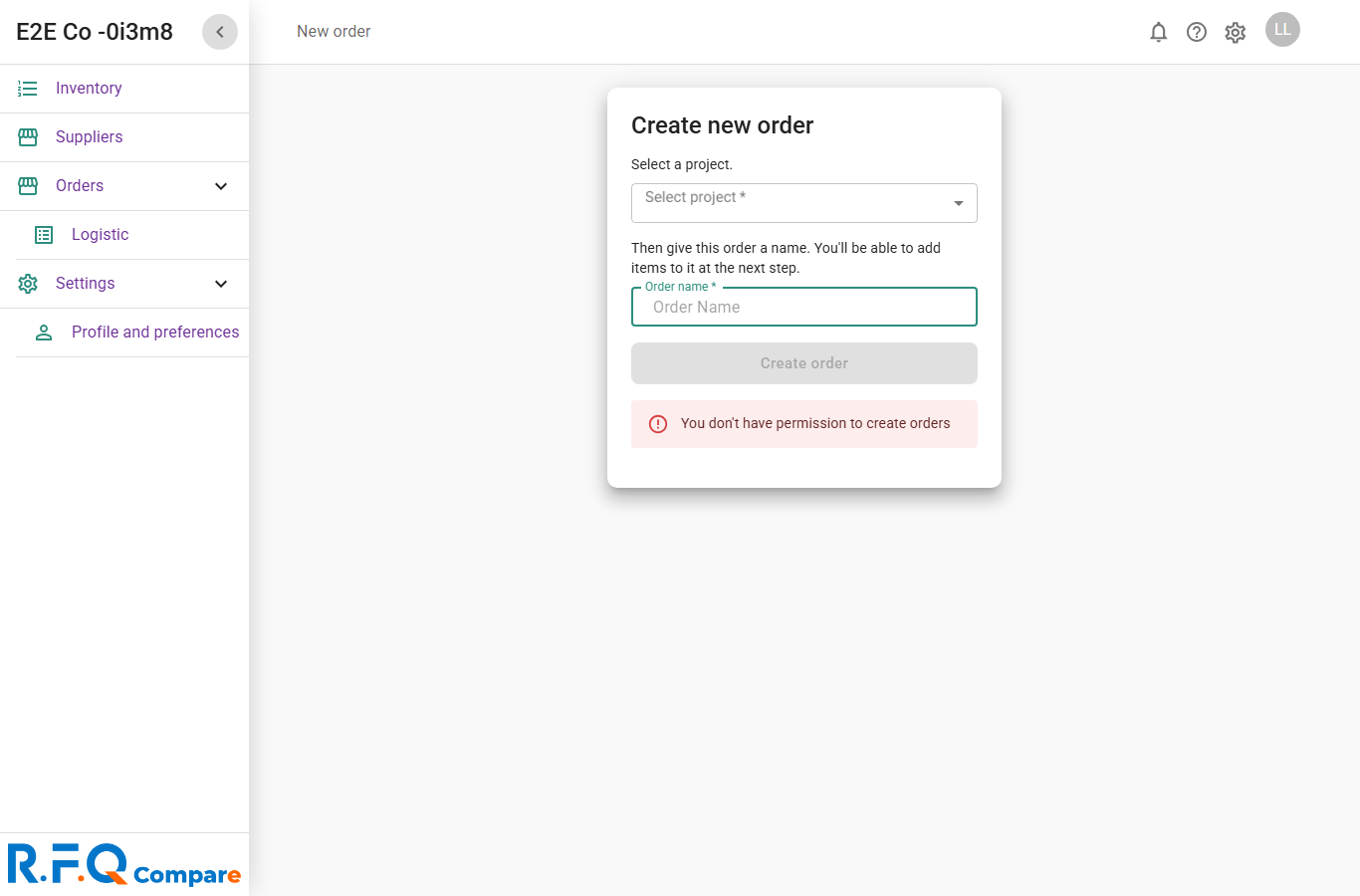
new-order-FIXED.png
new-order-FIXED.png
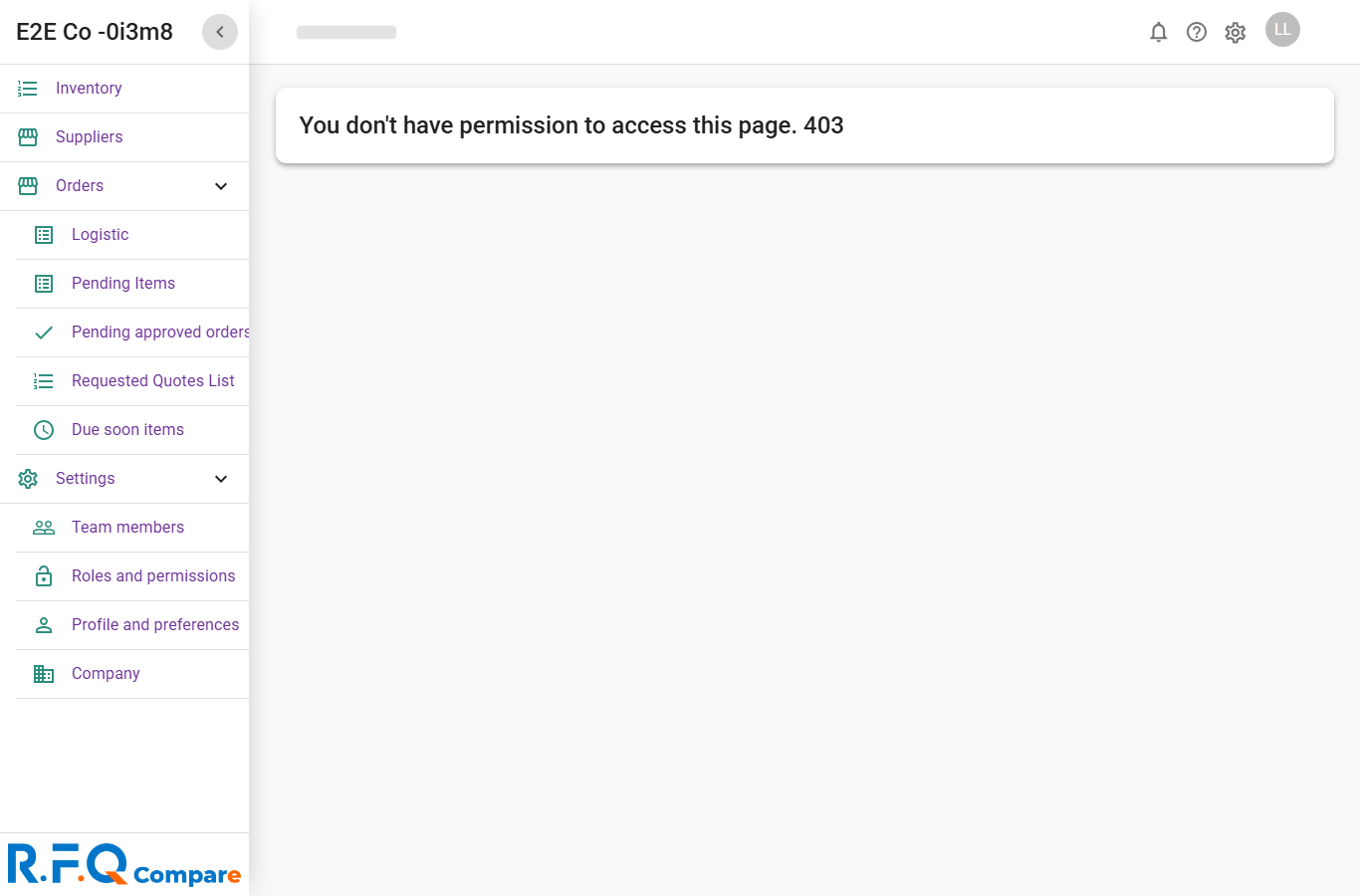
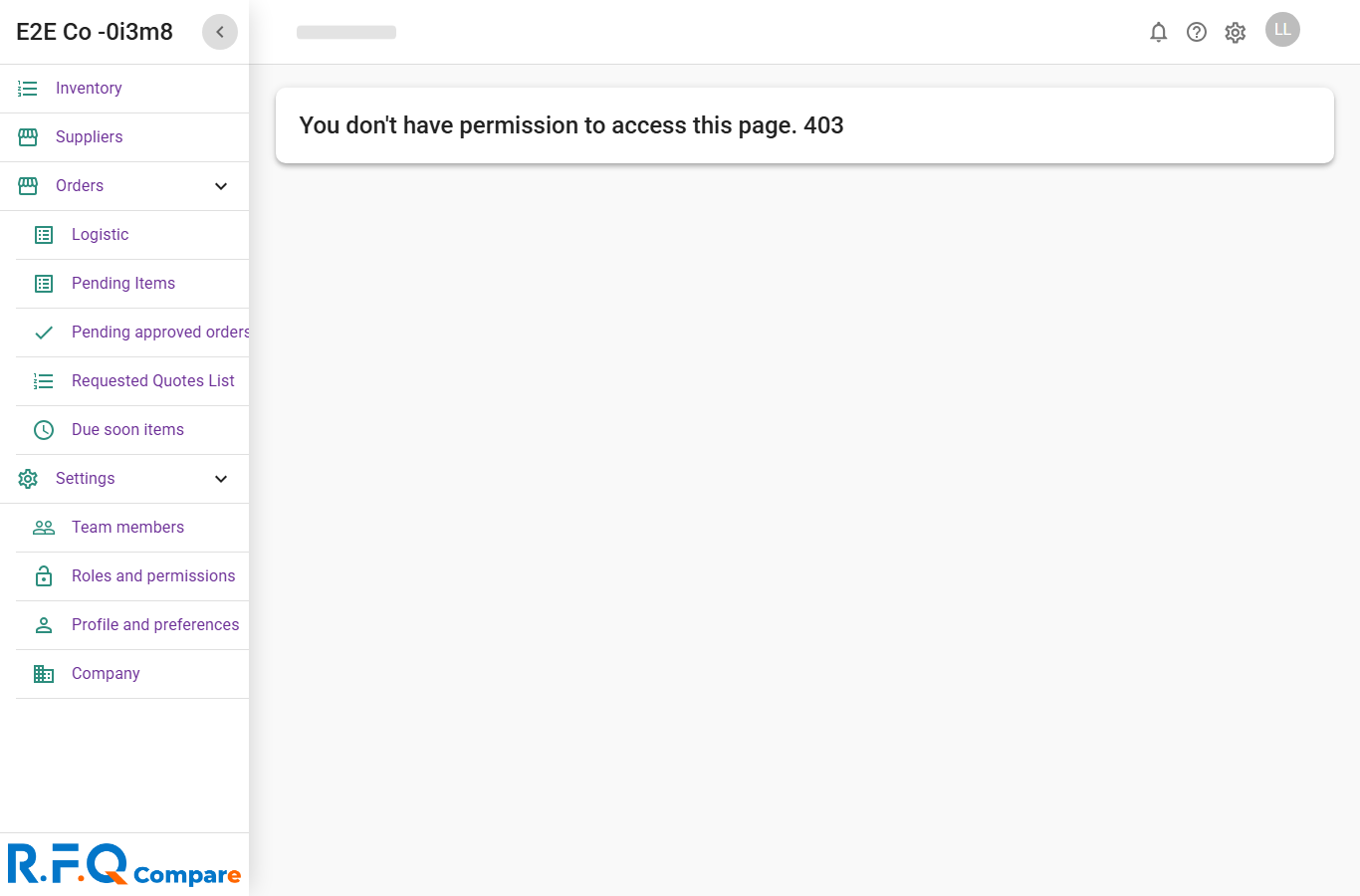
rbacv2-.png
rbacv2-.png
rbacv2-catalogs.png
rbacv2-catalogs.png
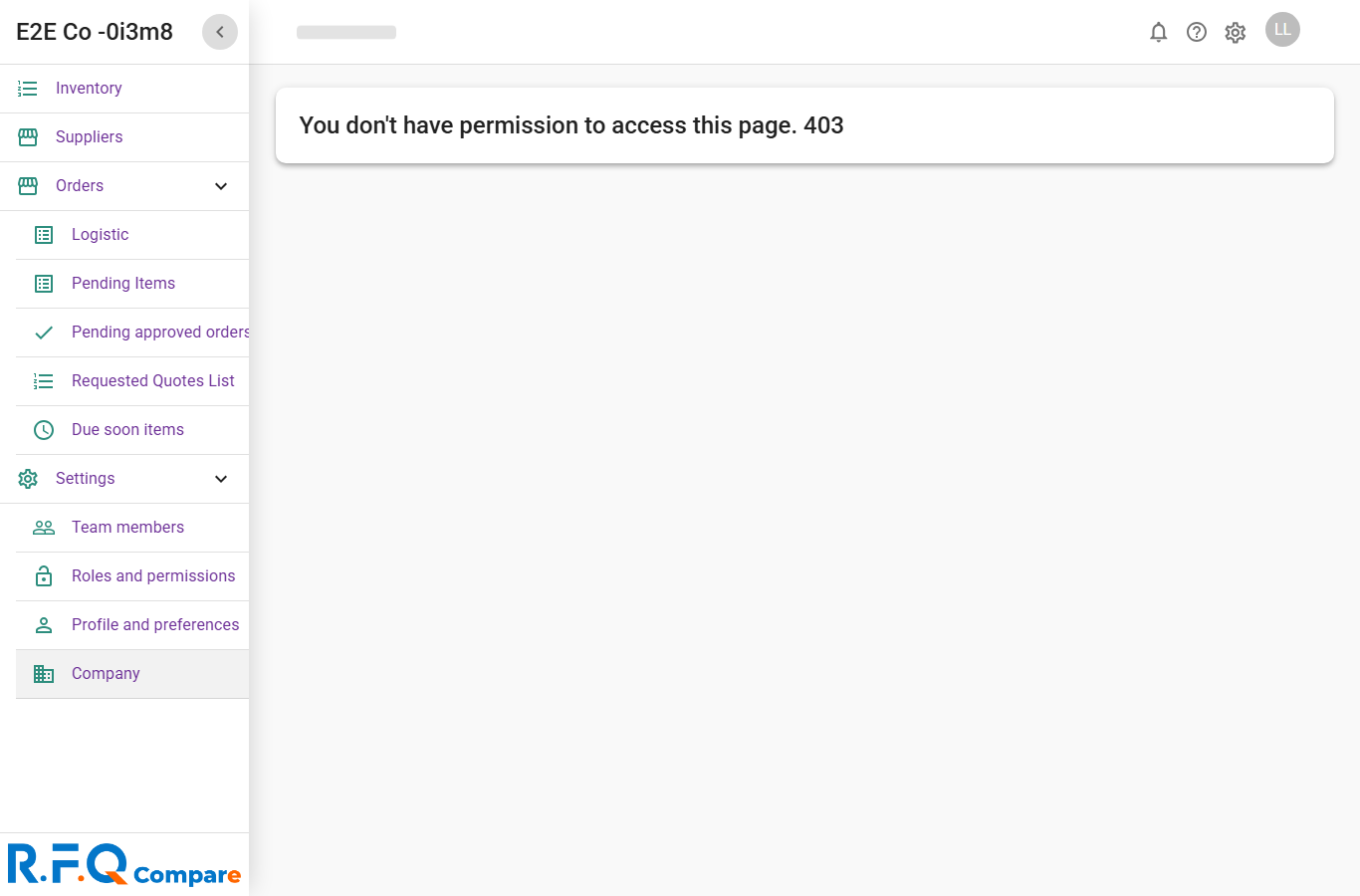
rbacv2-company-info.png
rbacv2-dashboard.png
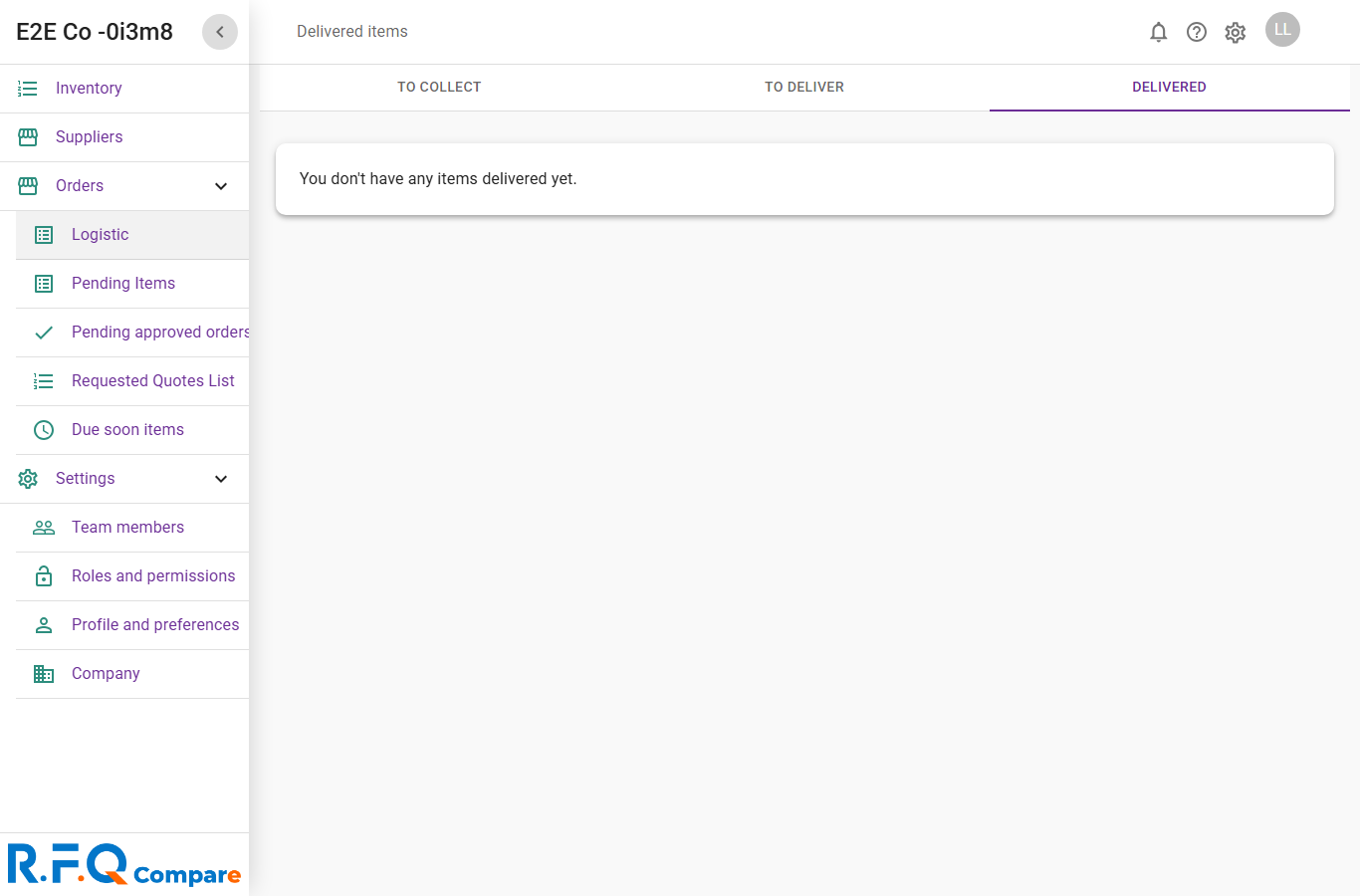
rbacv2-delivered.png
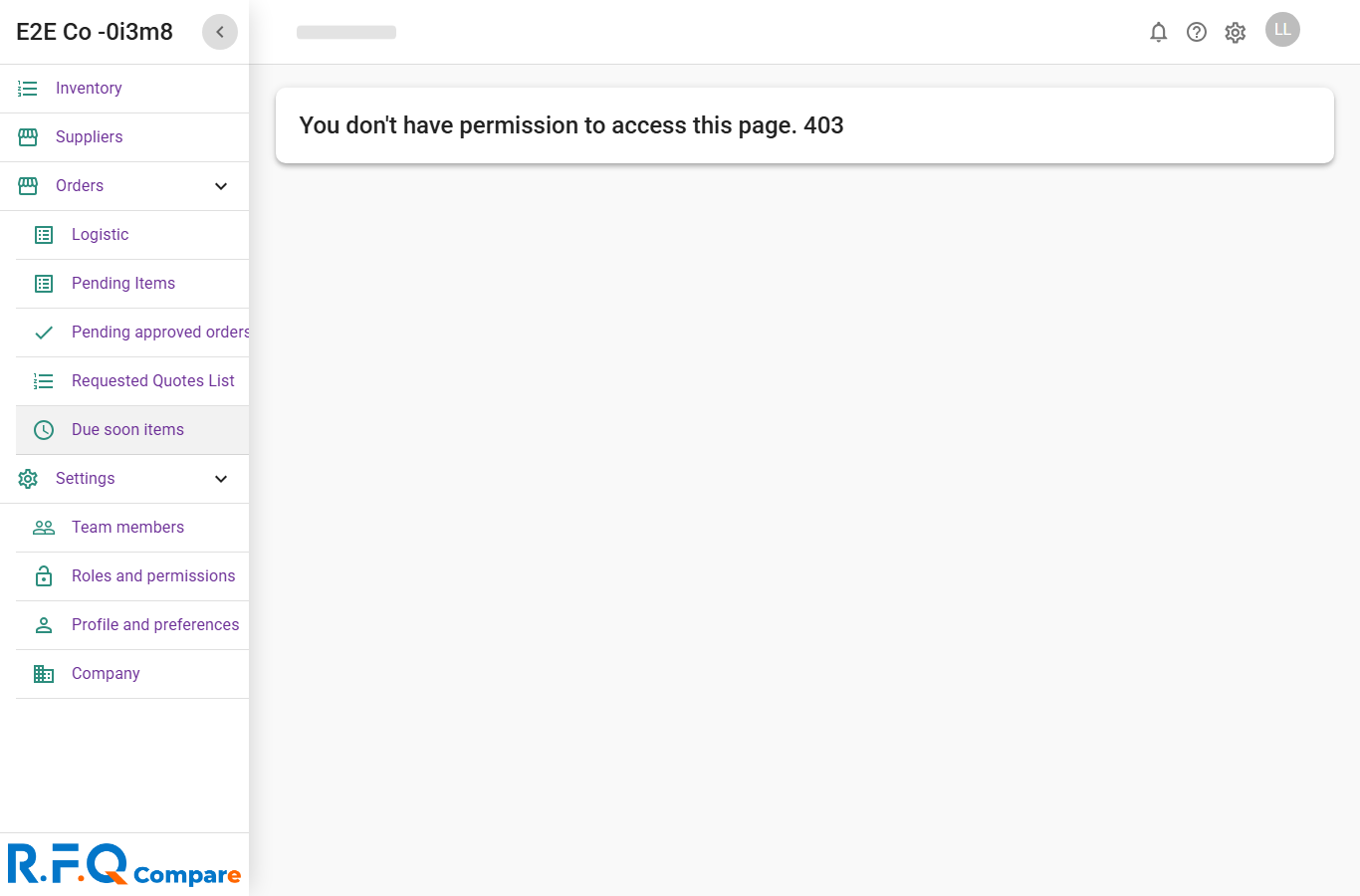
rbacv2-due-soon-items.png
rbacv2-emails.png
rbacv2-emails.png
rbacv2-inventory-confirm-delivery.png
rbacv2-inventory.png
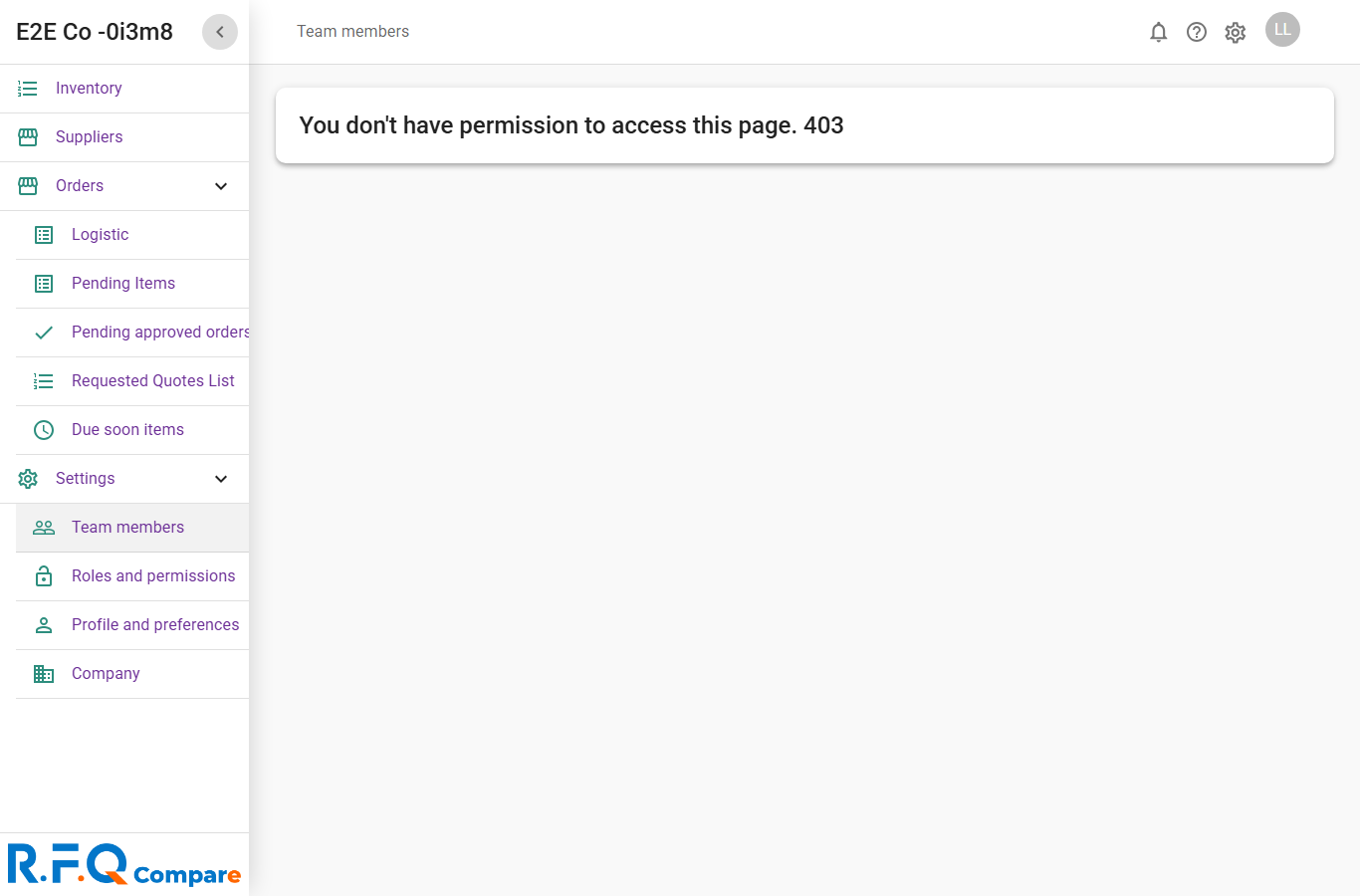
rbacv2-members.png
rbacv2-members.png
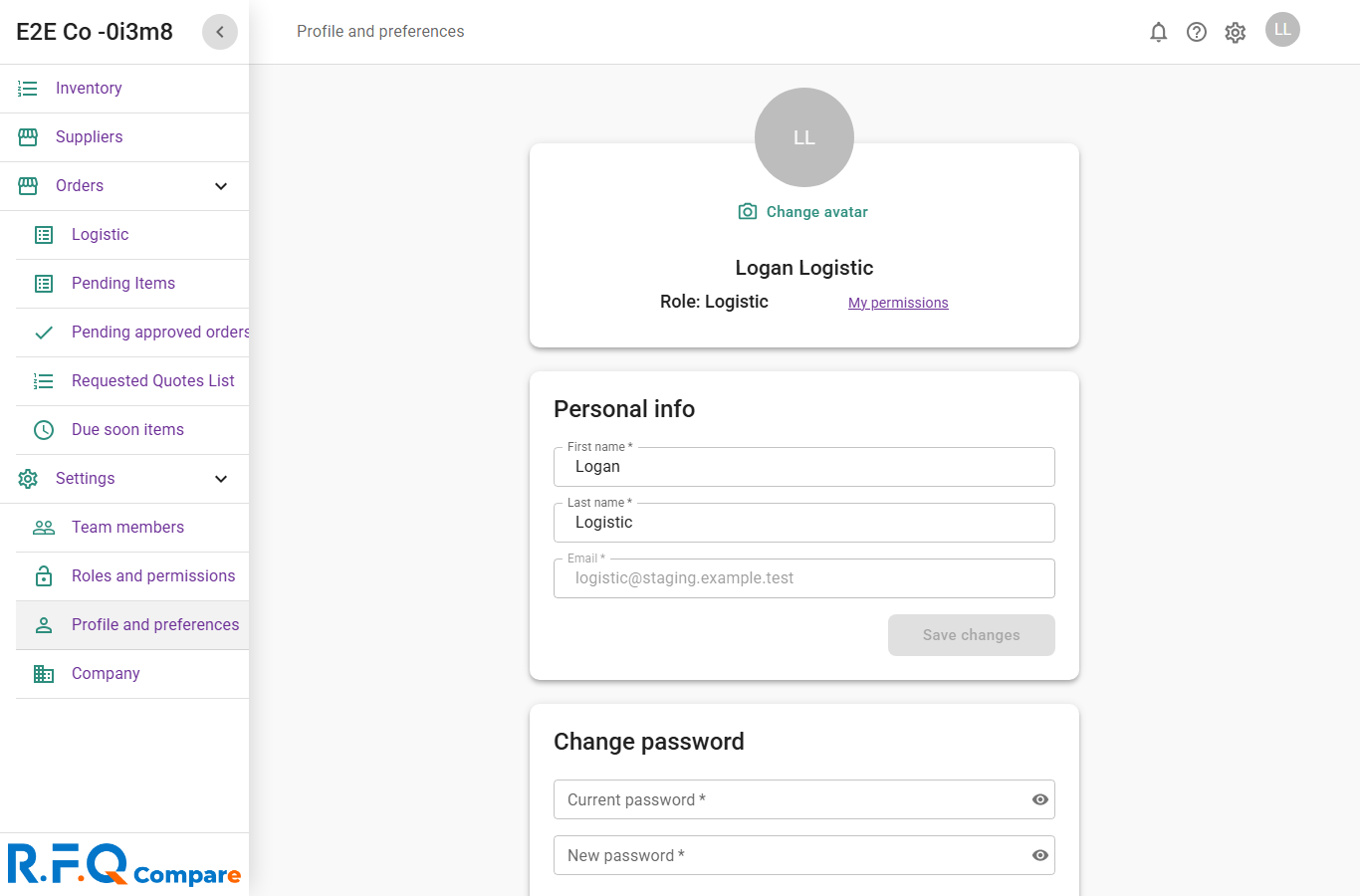
rbacv2-my-account.png
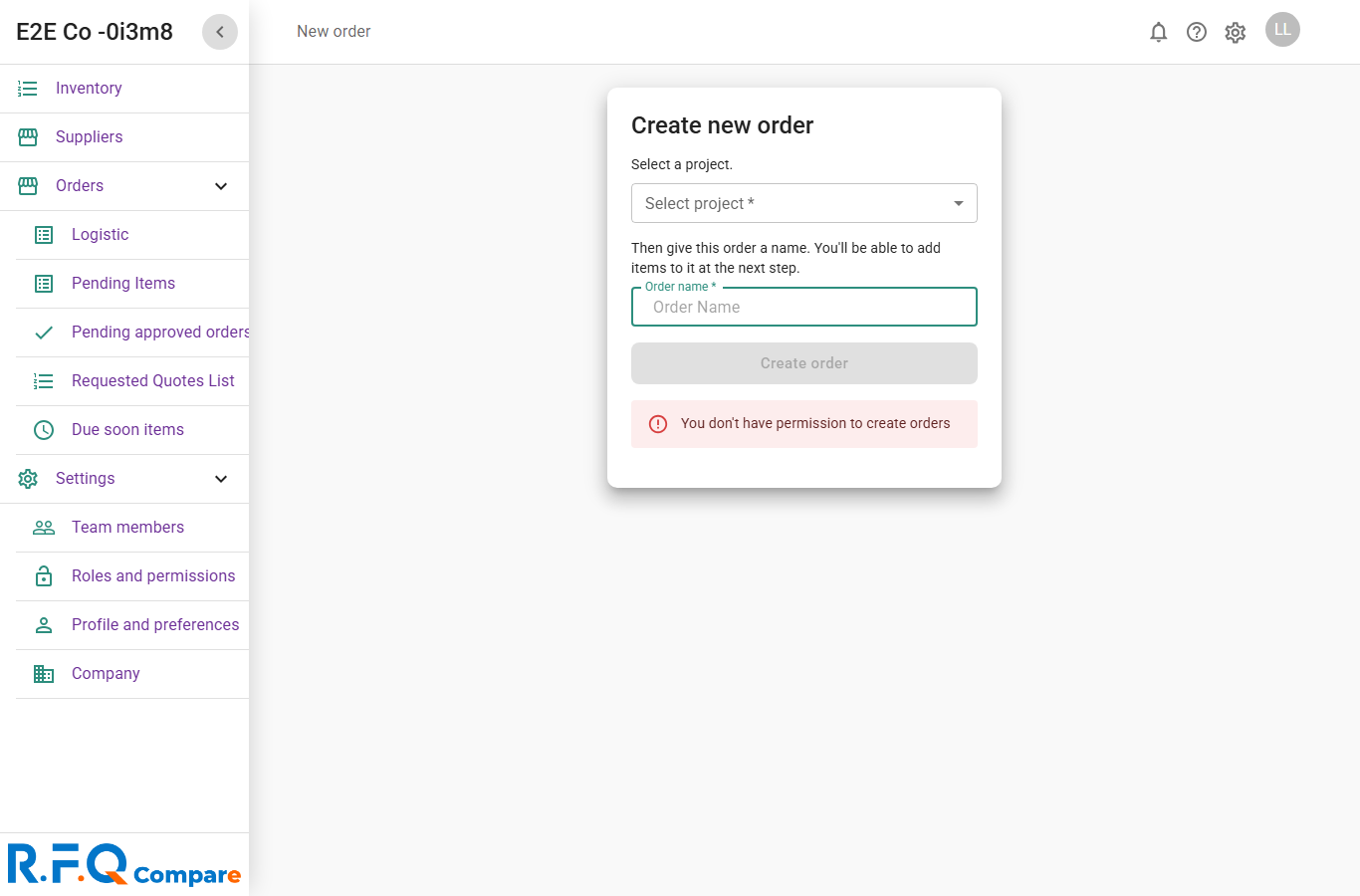
rbacv2-new-order.png
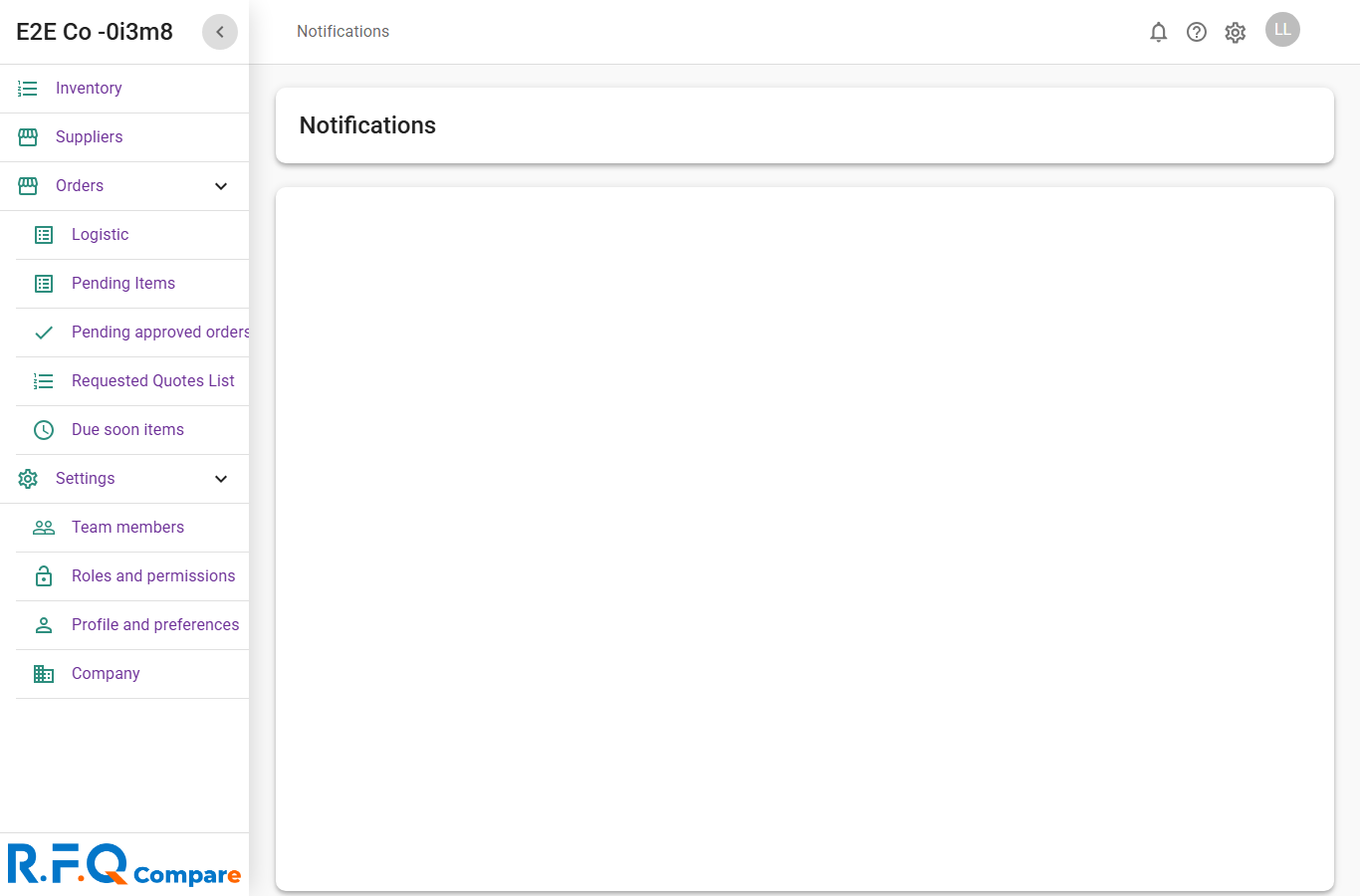
rbacv2-notifications.png
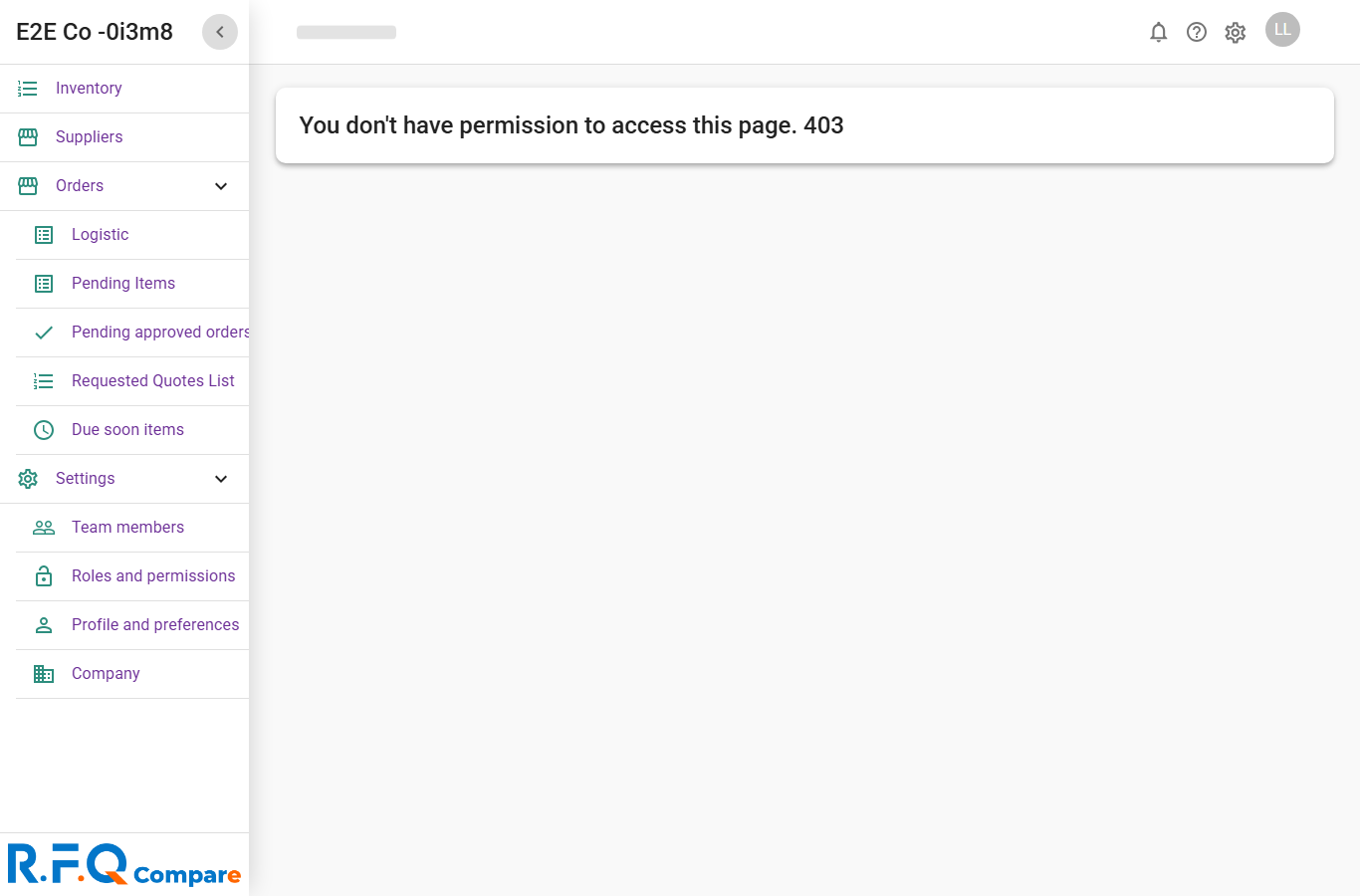
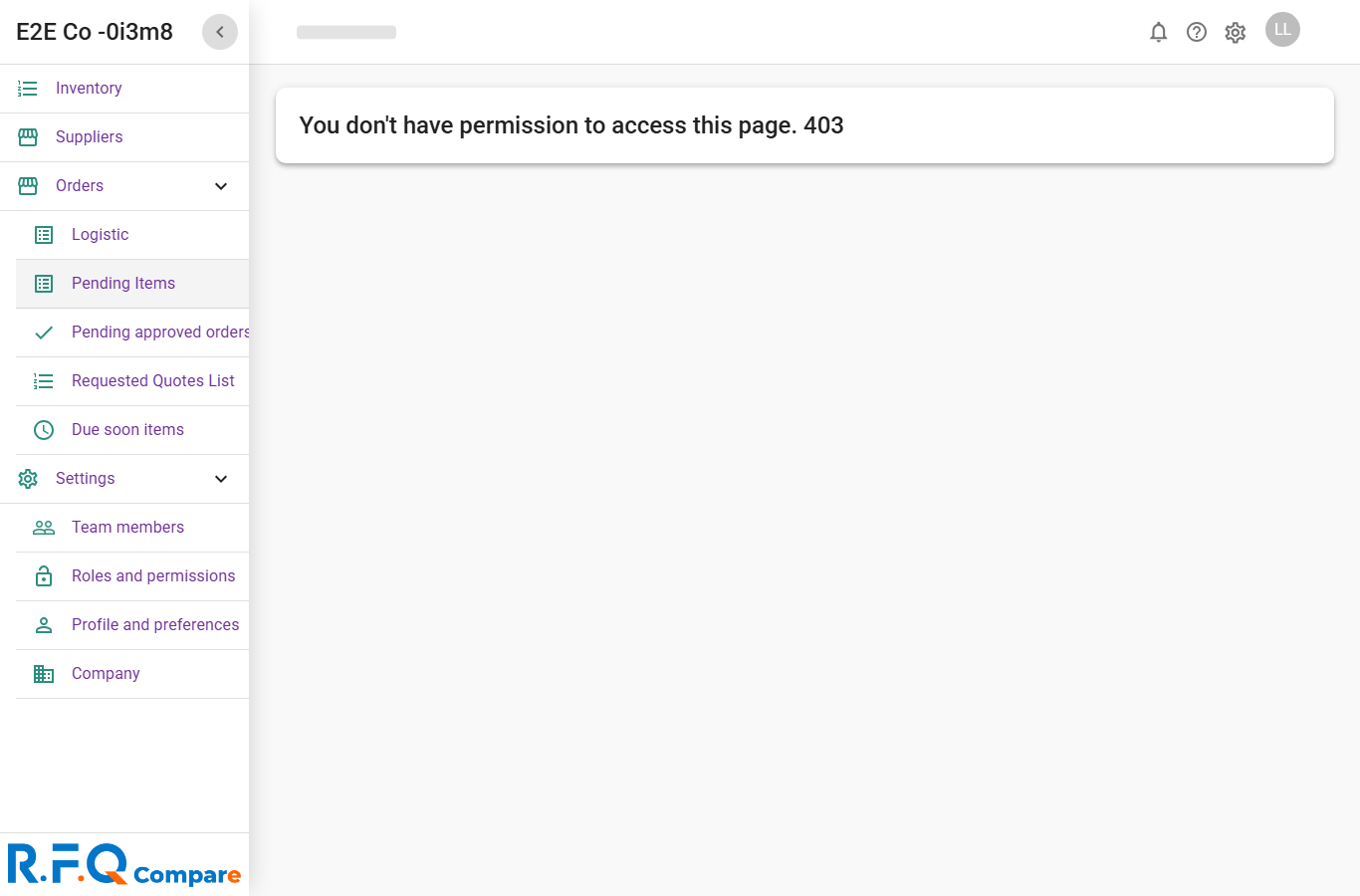
rbacv2-pending-items.png
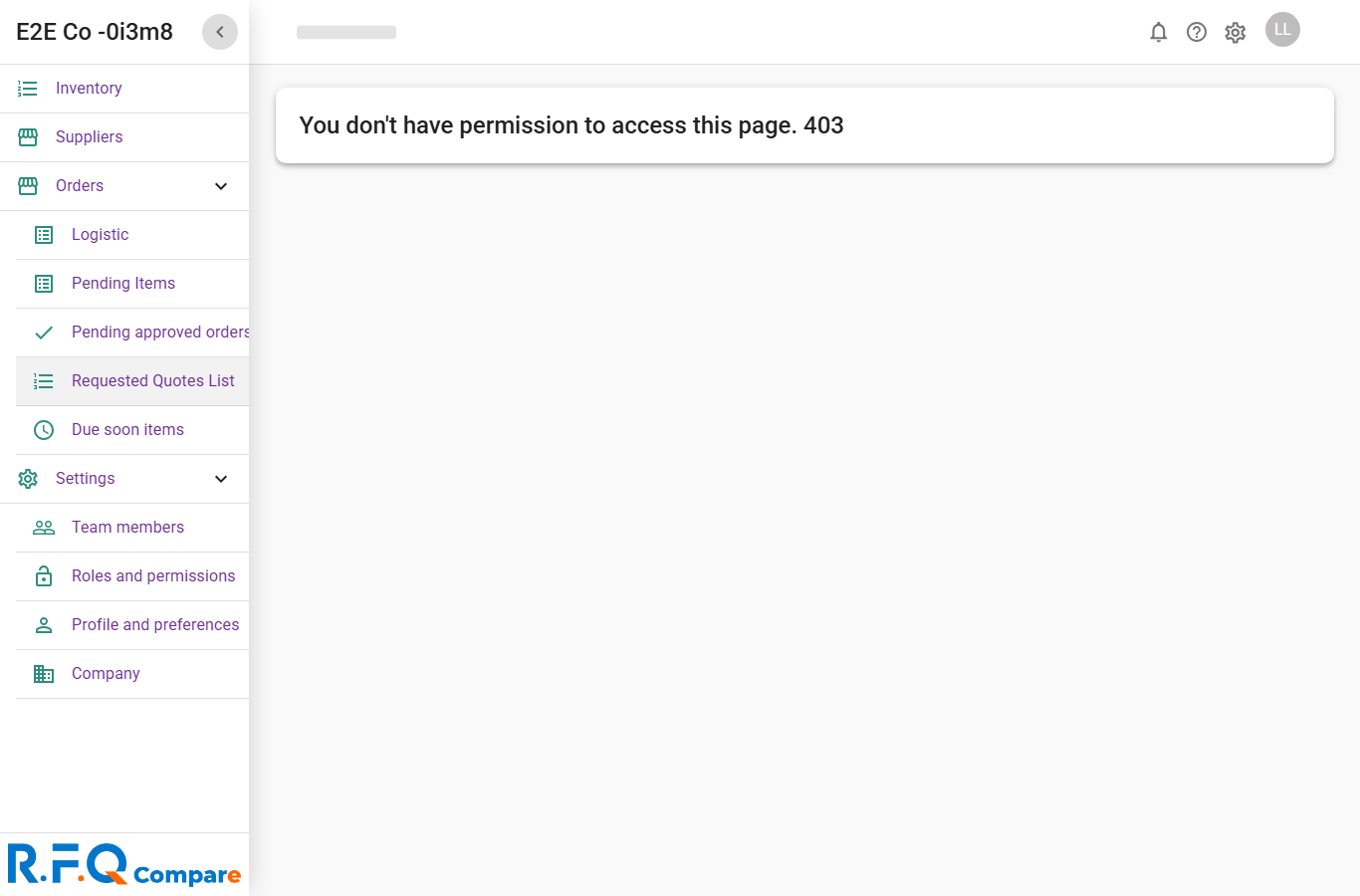
rbacv2-quote-requests-list.png
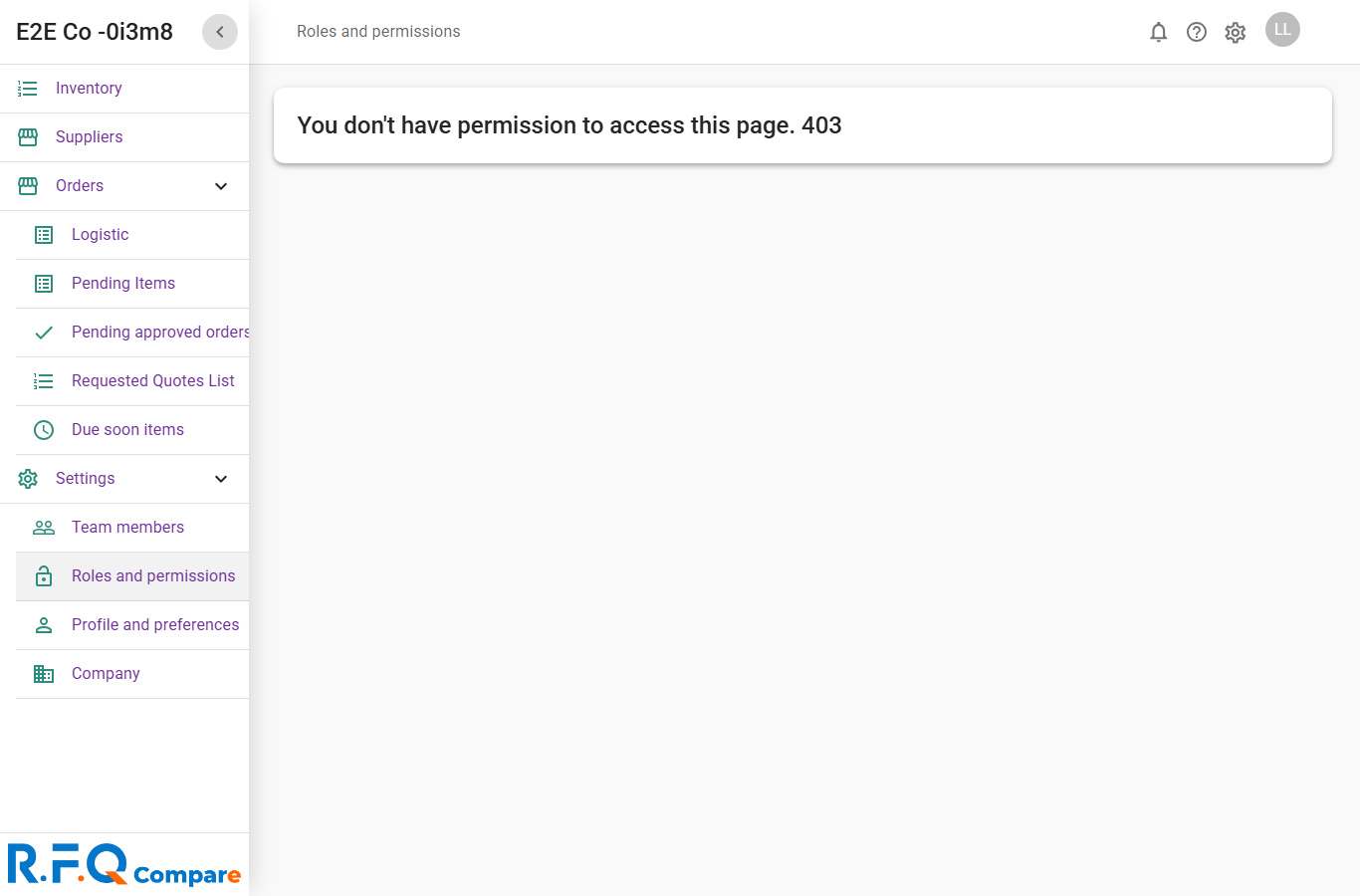
rbacv2-roles.png
rbacv2-roles.png
rbacv2-stats.png
rbacv2-stats.png
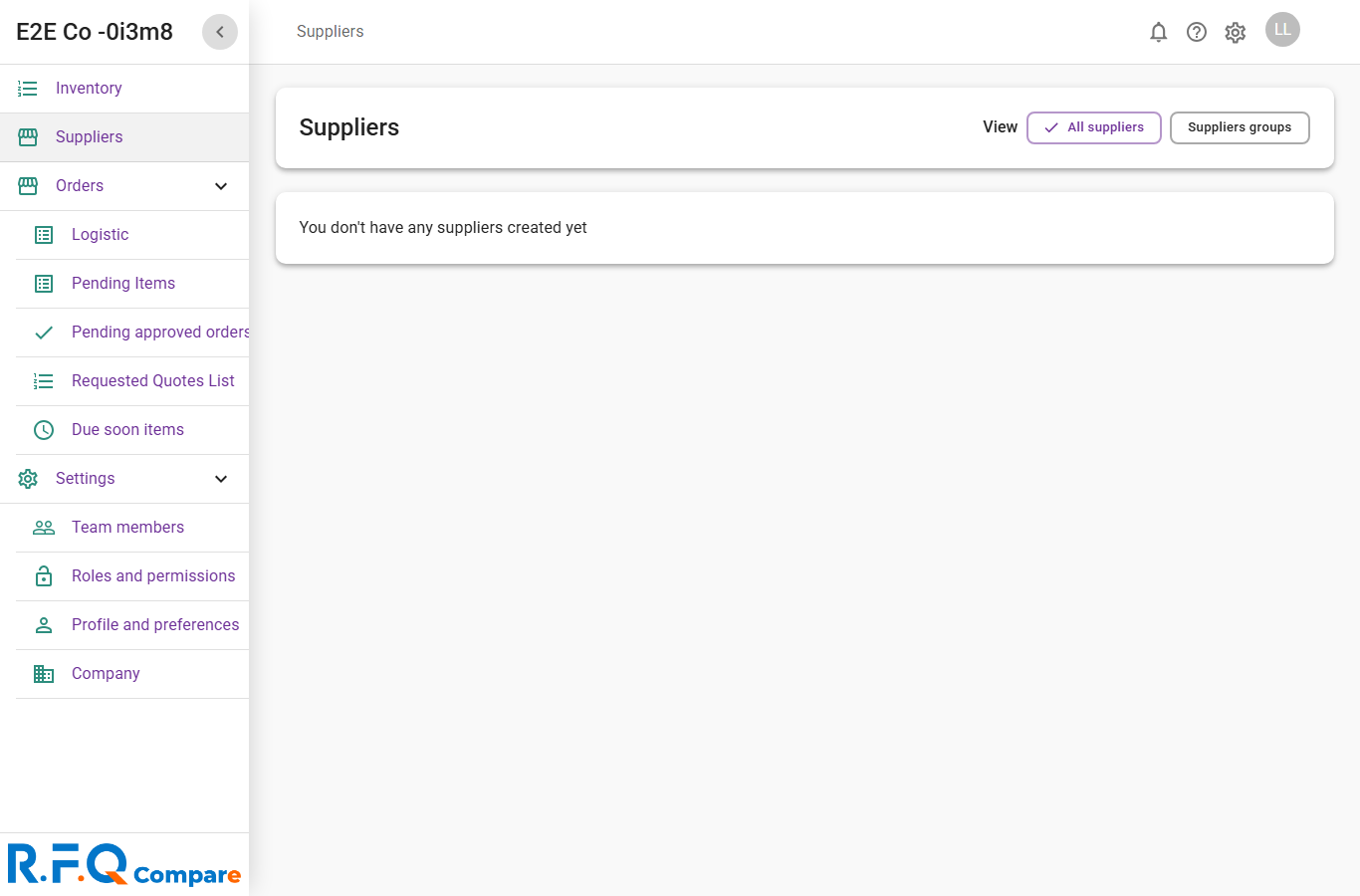
rbacv2-suppliers.png
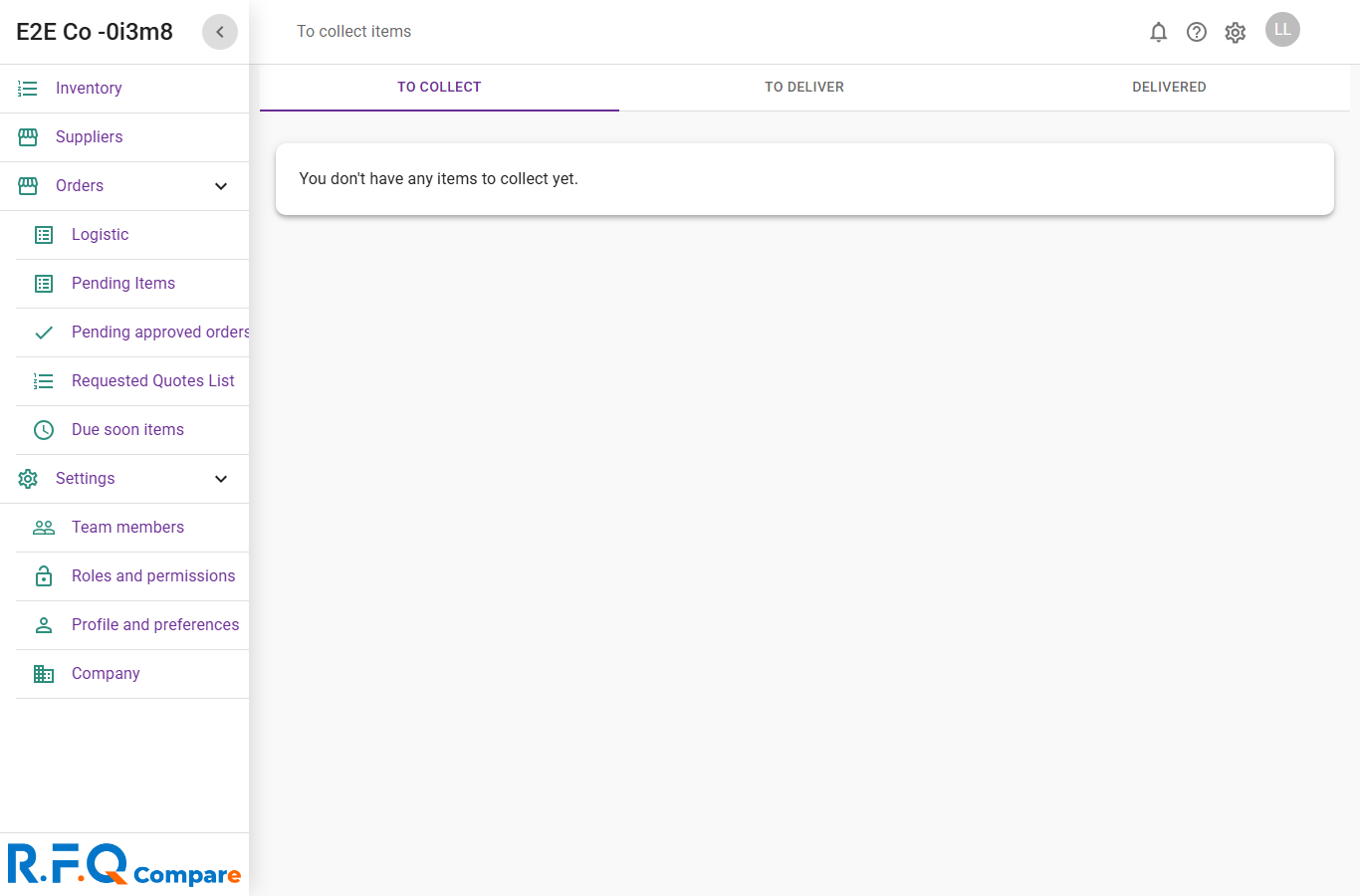
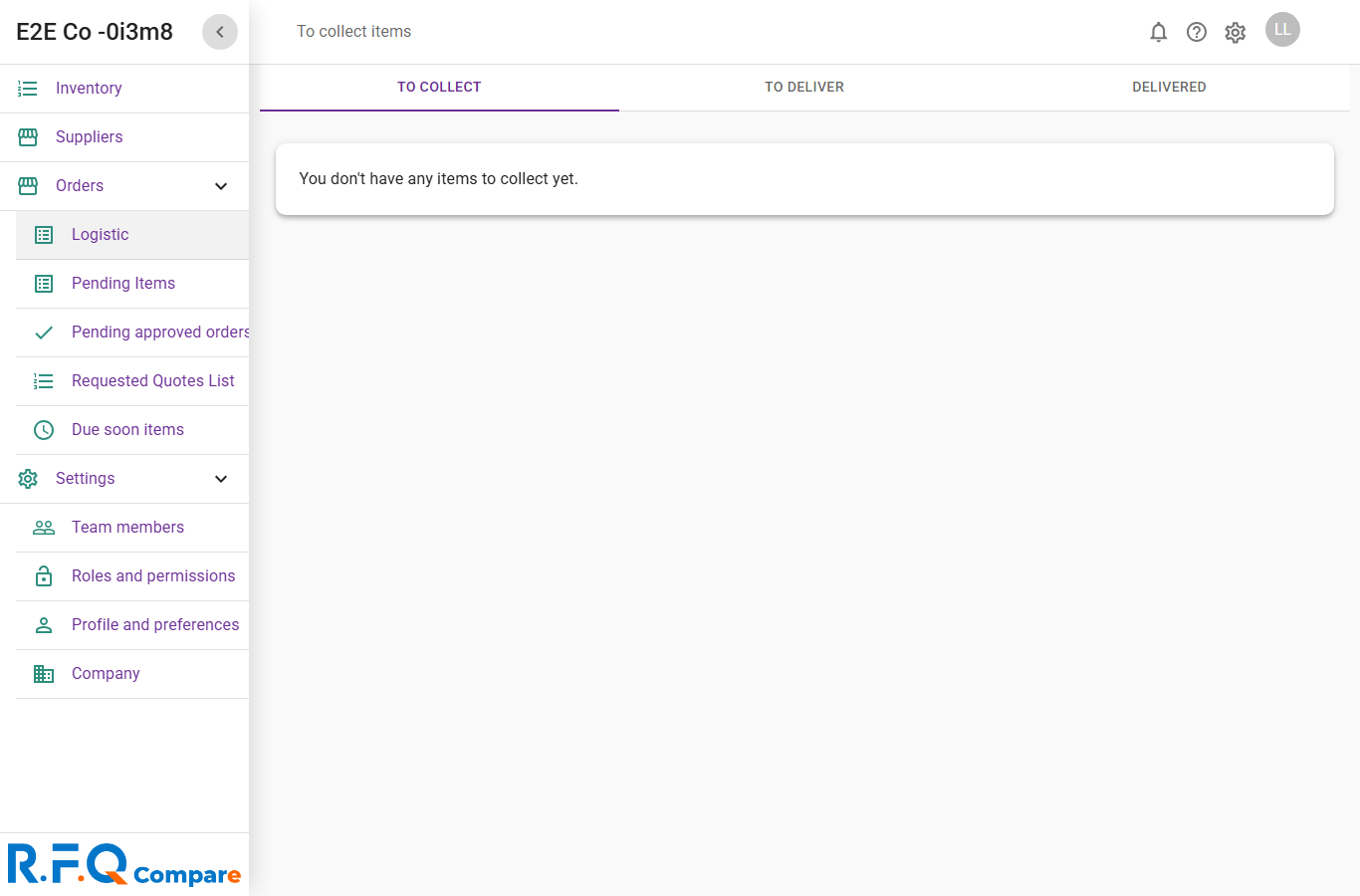
rbacv2-to-collect-and-deliver.png
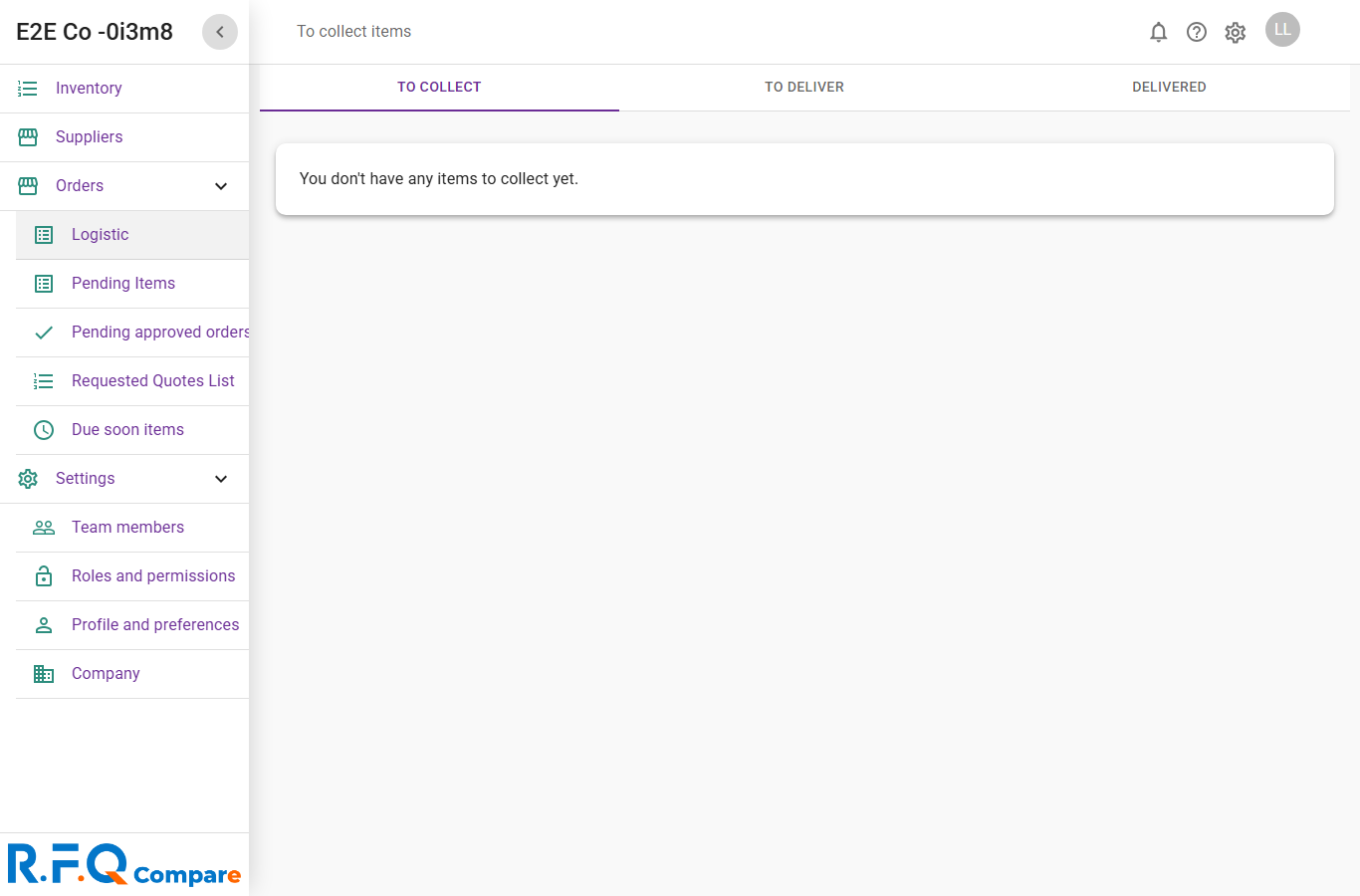
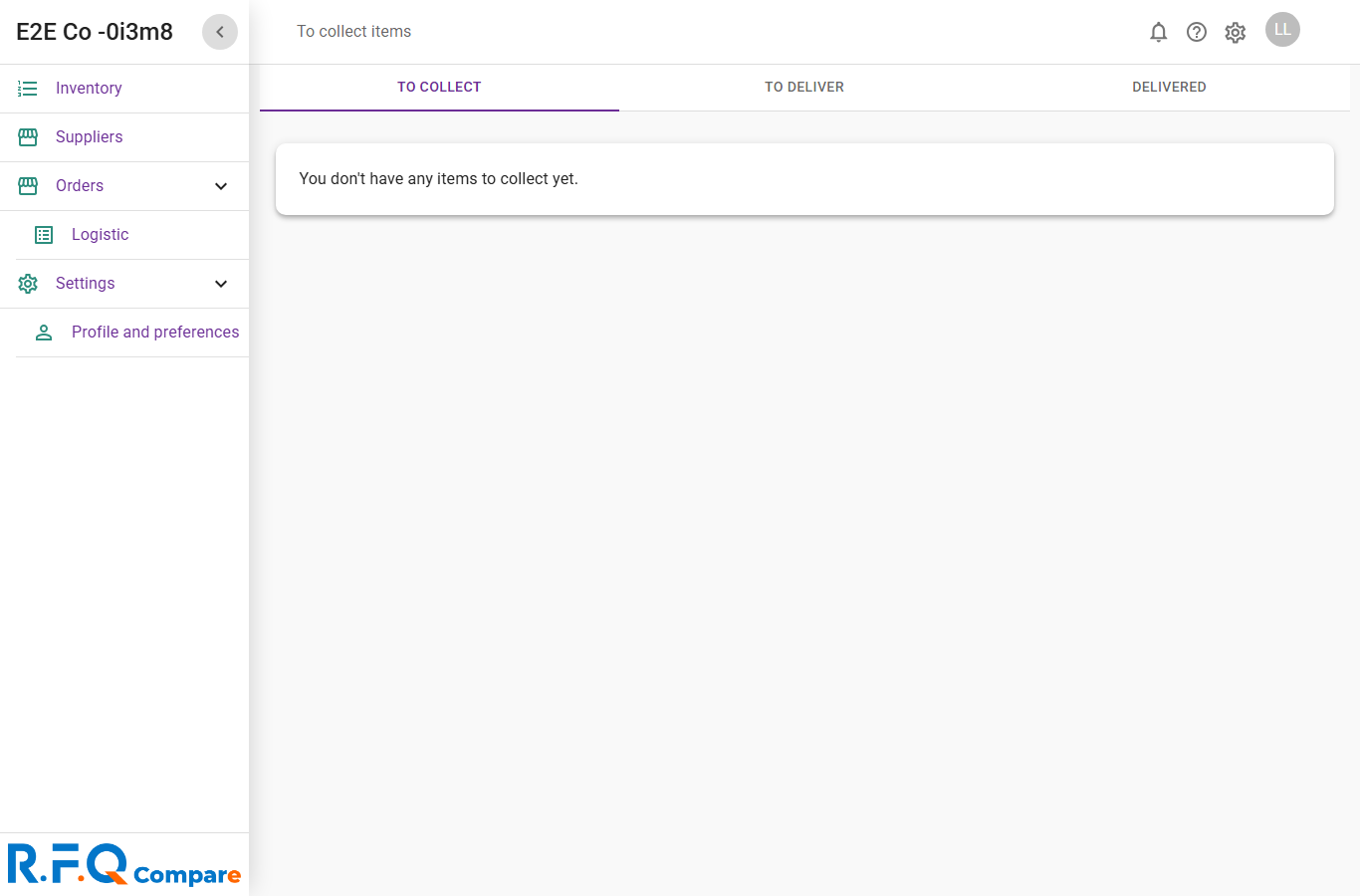
rbacv2-to-collect.png
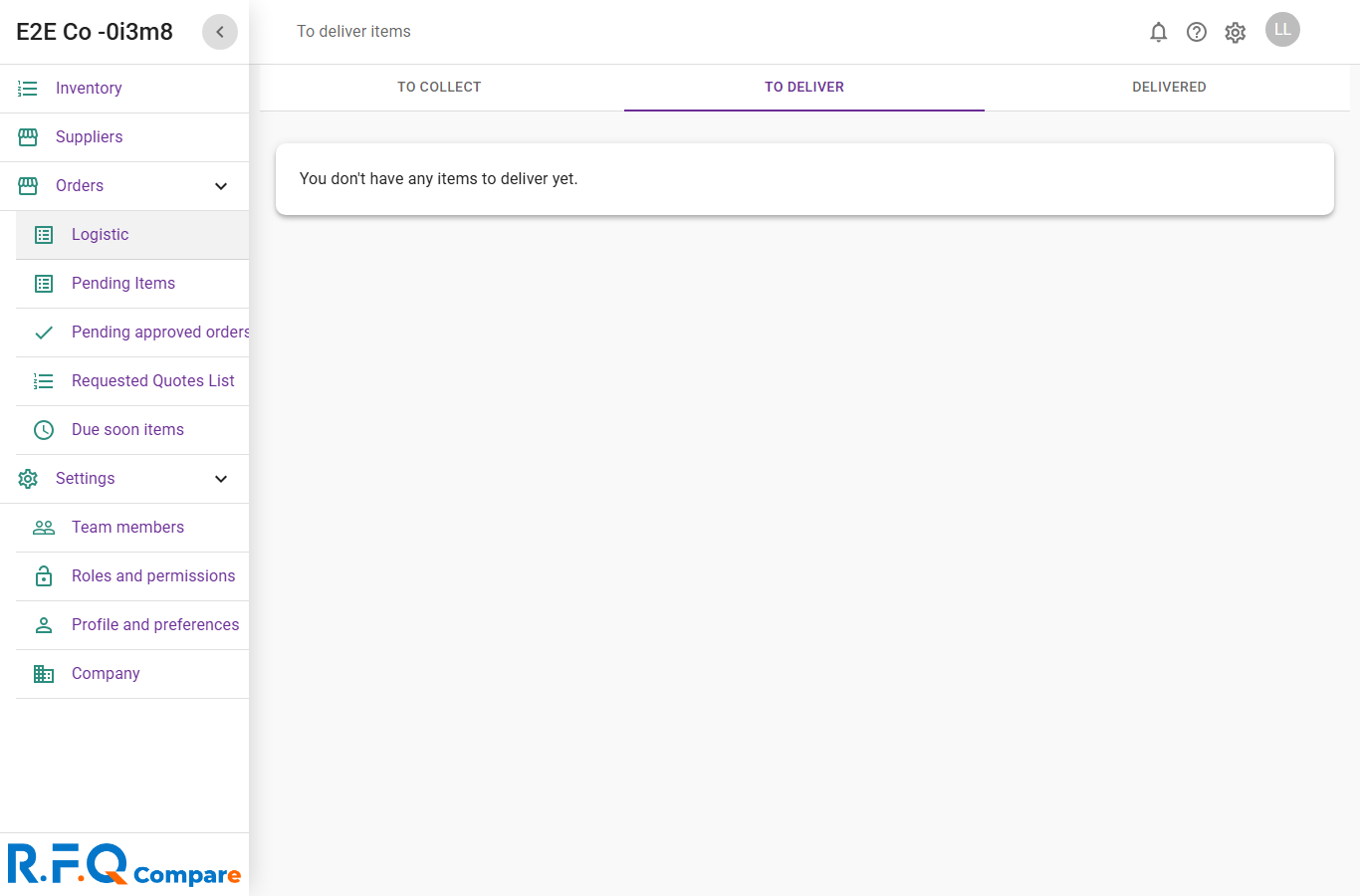
rbacv2-to-deliver.png
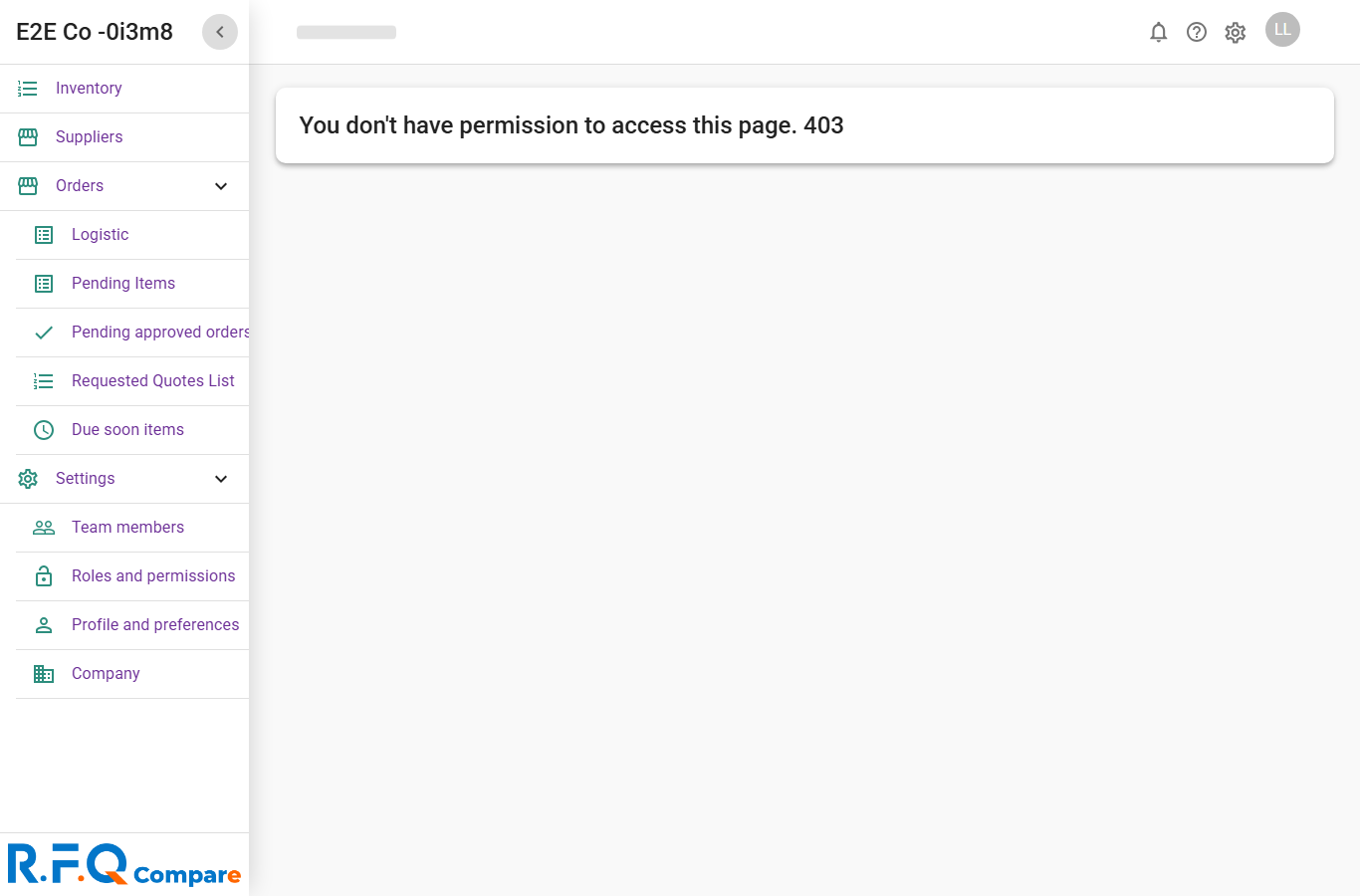
sidebar-FIXED.png
sidebar-FIXED.png