RFQ Compare scenario evidence
Overview / Admin

Admin 5 scenarios

Admin manages company settings, users/members, roles & permissions, billing, locales and emails.

A1

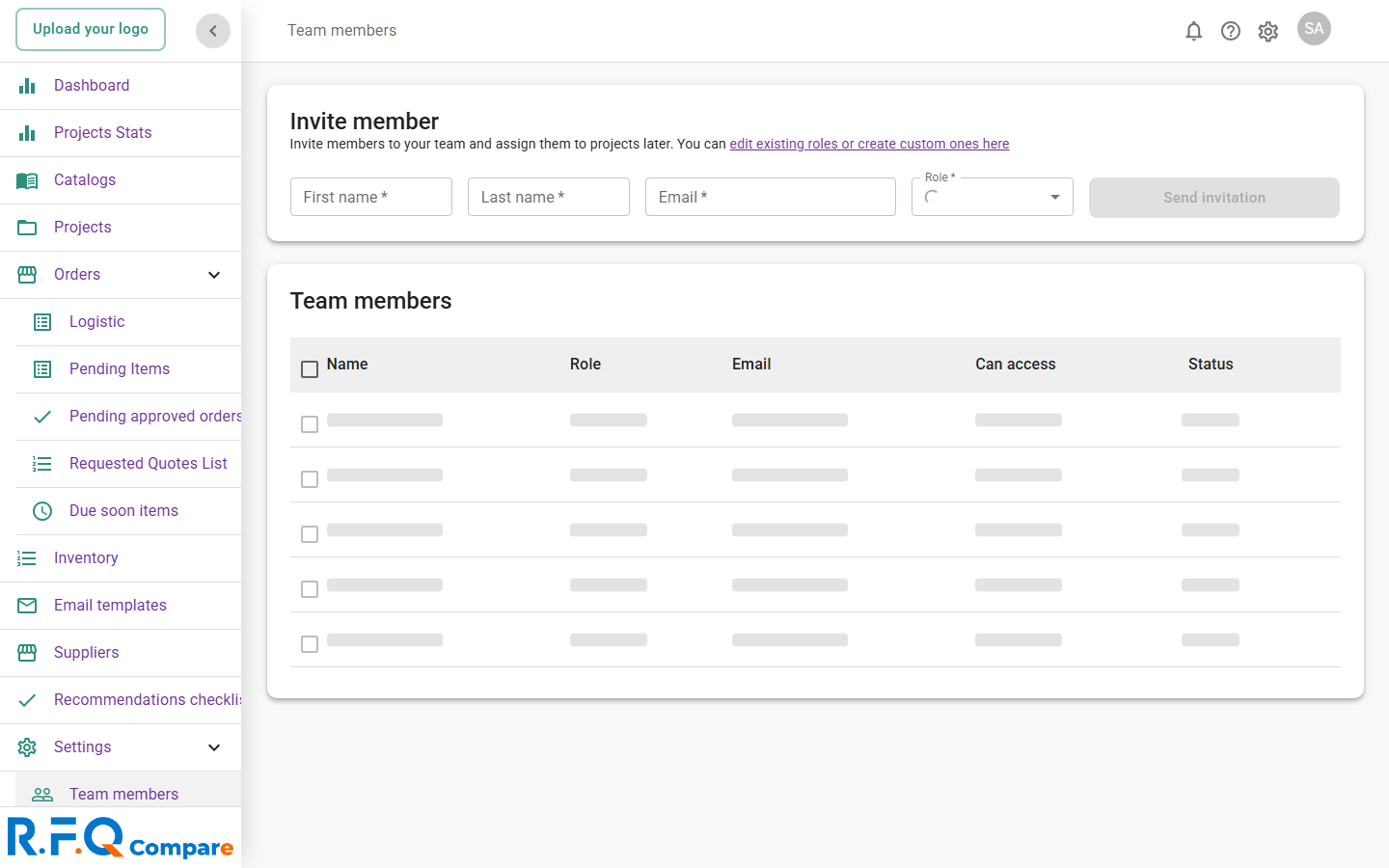
Admin creates a new user (requester role)

e2e/tests/staging-validation/admin-a1-create-user.spec.js
Admin
  1. Log in as admin and open the /members page.
  2. Wait for the InviteMemberForm to render.
  3. Fill in first name, last name and a unique email.
  4. Open the role dropdown and select the requester role.
  5. Submit the invite form.
  6. Confirm the team-members-table renders and the new member appears.
admin invites a new requester and they appear in members table · L21
A2

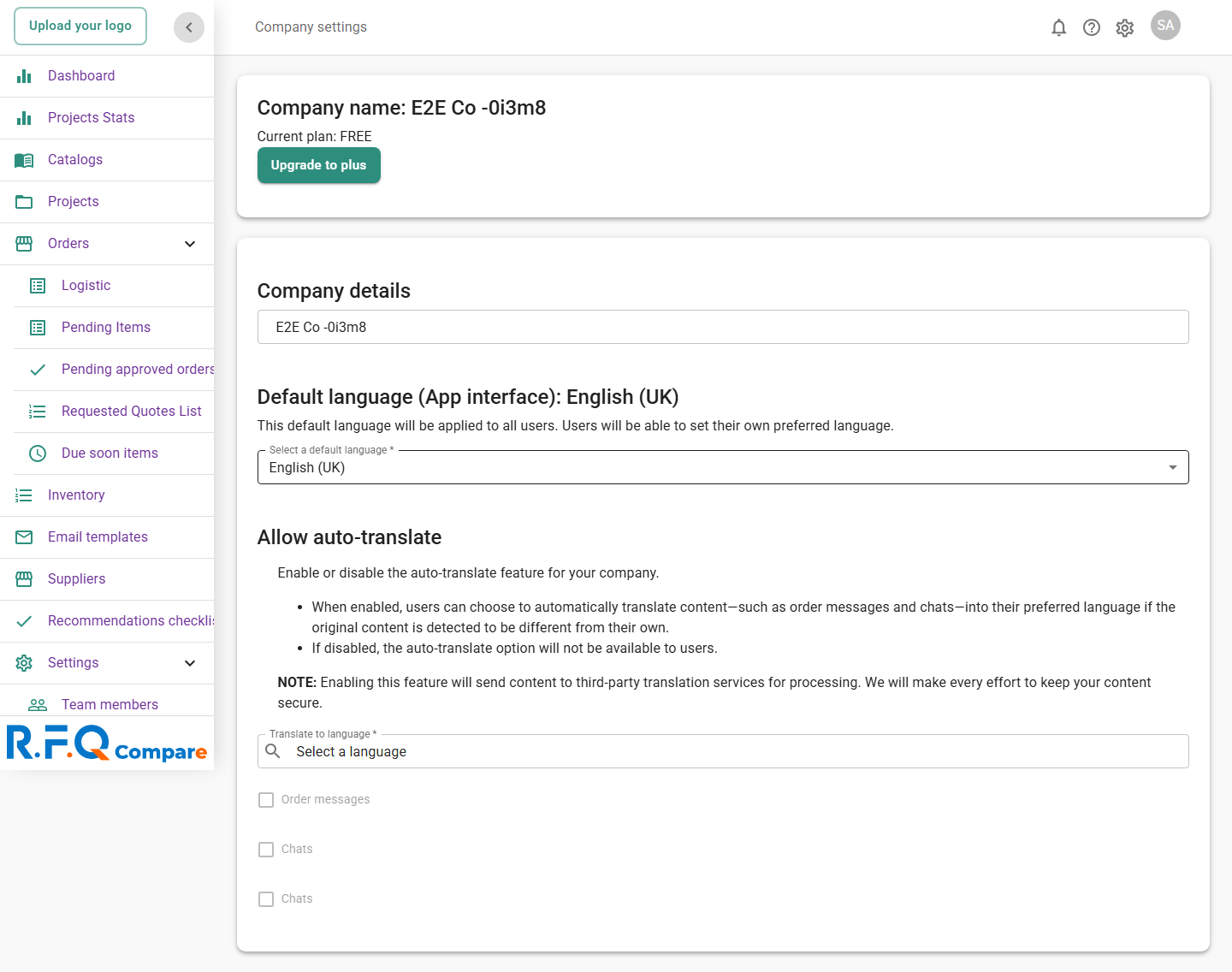
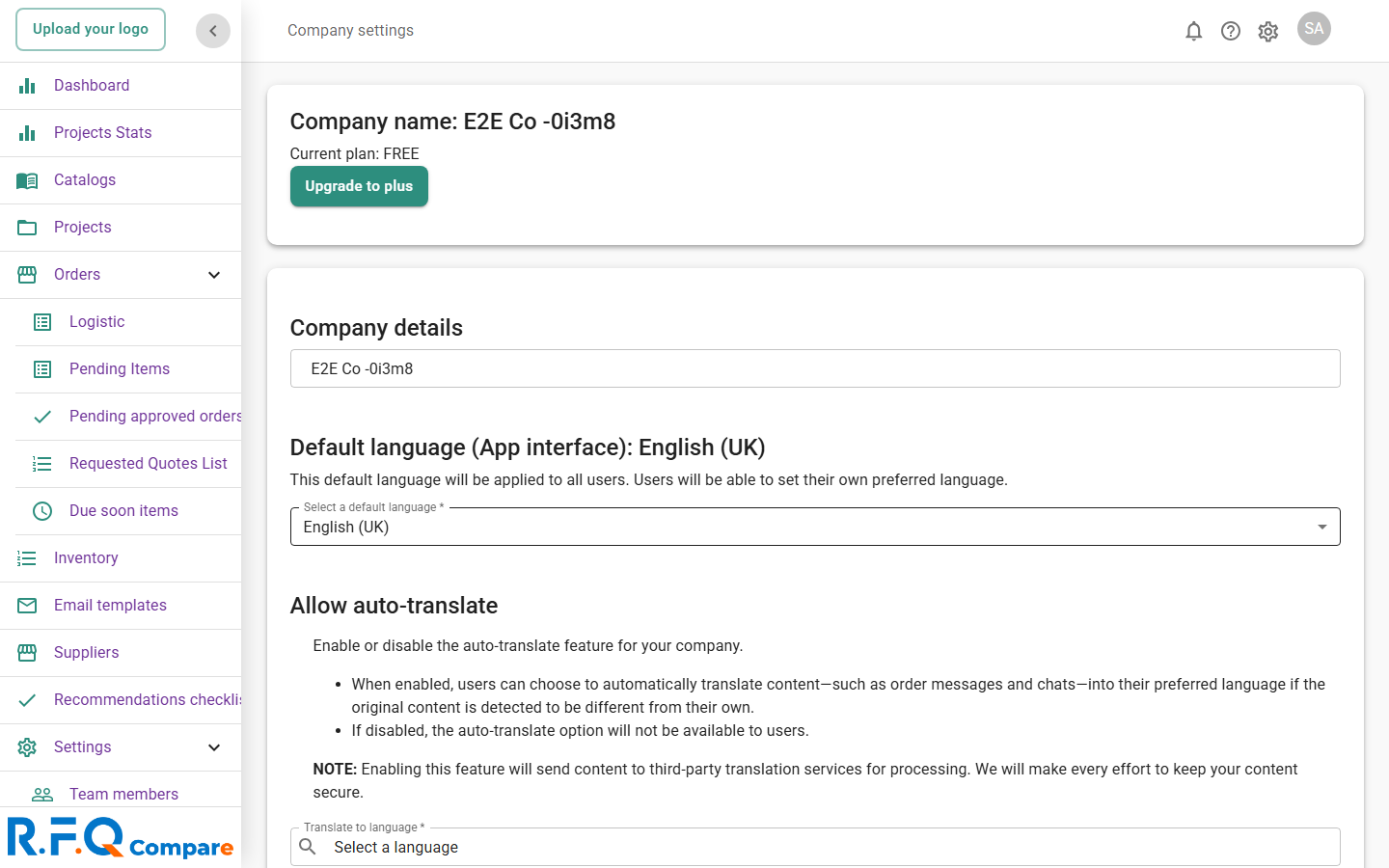
Admin edits company settings and verifies persistence

e2e/tests/staging-validation/admin-a2-company-settings.spec.js
Admin
  1. Open the /company-info page as admin.
  2. Capture the current company name value.
  3. Edit the name to a unique e2e value and save.
  4. Reload the page to force a server round-trip.
  5. Assert the new value persisted after reload.
  6. Restore the original company name to leave staging clean.
admin can edit and restore company name · L19
A3

Admin deactivates and re-activates a requester

e2e/tests/staging-validation/admin-a3-deactivate-user.spec.js
Admin
  1. Open the /members page and wait for the team-members-table.
  2. Find the seeded requester@staging.example.test row.
  3. Open the row's action menu and trigger the deactivate action.
  4. Confirm the deactivation dialog if one is shown.
  5. Verify the row reflects a disabled / inactive state.
  6. Re-activate the user to leave staging clean.
admin can toggle deactivate / reactivate on a requester · L22
A4

Admin dashboard metrics render

e2e/tests/staging-validation/admin-a4-dashboard-metrics.spec.js
Admin
  1. Open the dashboard at root, falling back to /dashboard if redirected.
  2. Confirm the page is not the login page and the body is populated.
  3. Assert at least one metric / widget container is visible.
  4. Verify the dashboard text contains at least one digit.
  5. Check that at least two of user, project and order keywords appear.
  6. Attach a full-page screenshot as evidence.
dashboard renders with non-zero metric widgets · L20
A5

Admin verifies roles & permissions (read-only)

e2e/tests/staging-validation/admin-a5-roles-permissions.spec.js
Admin
  1. Open the /roles page and wait for the roles-wrapper.
  2. Confirm at least one role card renders.
  3. Verify the seeded roles requester, office and logistic all appear.
  4. Open the first role card.
  5. Verify permission checkboxes or permission-style text are rendered.
  6. Perform no mutations — no toggles, no save.
roles page lists seeded roles and one role exposes permissions · L22

Screenshot evidence

Captured against staging 2026-05-26. Click any shot to enlarge. Filenames preserved as captions.

A01-dashboard.png
A01-dashboard.png
A02-company-info.png
A03-settings.png
A03-settings.png
A04-billing.png
A04-billing.png
A05-members.png
A05-members.png
A06-roles.png
A06-roles.png
A07-locales.png
A07-locales.png
A08-emails.png
A08-emails.png
A09-emails-create.png
A10-my-account.png
A10-my-account.png
F-ADMIN-004-FIXED_sidebar.png
PR1-verify__roles.png
PR2-verify-2__billing.png
PR2-verify-2__settings.png
PR2-verify-3__billing.png
PR2-verify-3__settings.png
PR2-verify__billing.png
PR2-verify__roles.png
PR2-verify__settings.png